


Phone Clone: All Data Transfer
4.09.00 Reviews
App Specs
- Version
- 1.75
- Updated On
- License
- Free
- Downloads
- 500,000+
- Developer
- CloudWest Technology
- Categories
- Libraries & Demo
- Platform
- Android
Screenshots
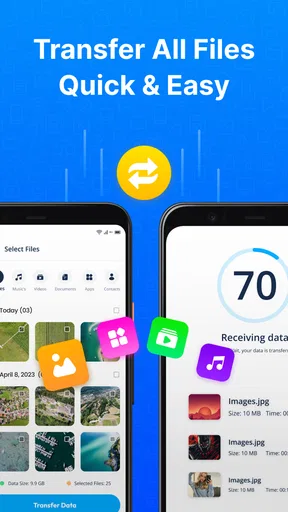
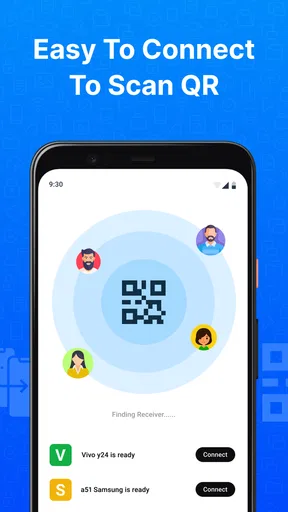
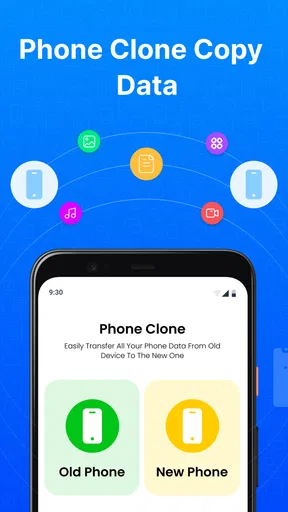
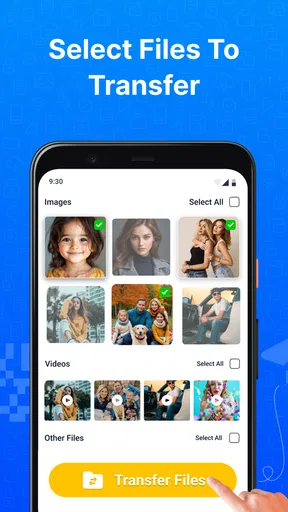
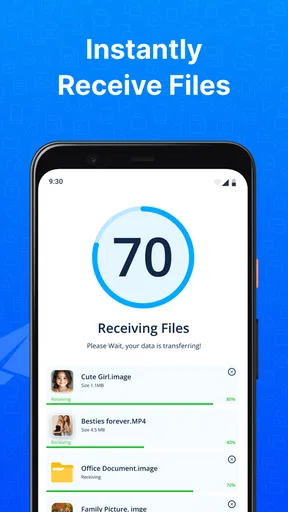
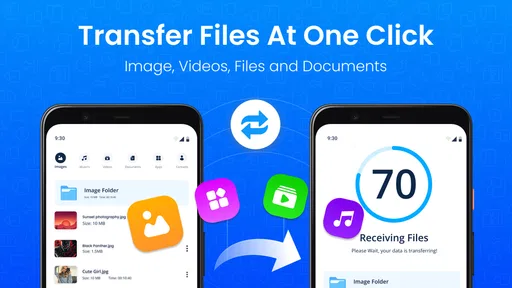
 Analysis by AppCompare
Changing phones can feel less like an upgrade and more like a small packing job: photos, contacts, messages, and the everyday files you don’t want to leave behind all need attention. I tried Phone Clone: All Data Transfer with that practical problem in mind. Its promise is simple—help move personal content between Android devices—and that narrow focus is useful when you want to get a new handset started without sorting everything by hand.
What to expect from a transfer app
This is a free utility from CloudWest Technology in the Libraries & Demo category, rather than a backup service or a general file manager. It has a 4.0 average from around 1,600 ratings and more than 500,000 installs, so there is evidence that plenty of people have tried it, though those figures don’t tell you whether it suits your exact phone pair. The app is rated for everyone, and its current version is 1.75.
The important expectation to set is that moving a phone’s contents is not always the same as cloning the phone perfectly. Contacts, photos, videos, and files are the core things to think about. Some things can depend on the operating system, the apps involved, or where your information is stored. I would treat the transfer as a way to bring across useful personal content, then check the new phone carefully rather than assuming every setting and sign-in will be recreated.
Starting without making the process harder
For a first attempt, keep both phones nearby, charged, and available until you have checked the result. Install the app on the devices you intend to connect, read each screen before moving on, and follow the prompts to pair them. The original experience describes a Wi-Fi connection between the phones, which can make a direct transfer feel more straightforward than uploading a large collection to cloud storage first.
Before you begin, take a moment to decide what matters most. If you mainly want your photos and contacts, focus on those categories and avoid turning a simple move into a full-device project. If you have a large video library, leave enough time and keep the phones close together. A transfer can be interrupted by ordinary things such as a low battery or switching away to handle another task, so I would start when you can let both devices sit undisturbed.
Making the first successful move
A reassuring first test is a small, meaningful selection rather than everything at once. Choose a few contacts or photos, complete the transfer, and check the destination phone. Confirm that the photos open and that the contacts appear as expected. This quick check helps you understand the pairing flow before you commit to moving a much larger collection.
Once the test looks right, move on to the rest of the content you actually need. For a realistic example, imagine replacing a phone before a busy week: I would first bring over the contacts I use for work and family, then the recent photos and videos I want on hand. After that, I’d review the new device’s gallery and address book before wiping or trading in the old phone. That order reduces the risk of discovering a missing item only after the source device is no longer available.
Worth Reading Before You Choose

Flipboard Shows What News Apps Must Do Beyond the Feed

Switching to Android Auto Means Rethinking Your Driving Routine

Google Calendar Makes a Crowded Week Easier to Manage

Ludo King Makes the Most of the Minutes Between Plans

Baby Panda World Brings Quick Play to Modern Phones, but Its Game Library Feels Busy

ESPN’s Live Game View Makes Following Close Games Easier
What moves—and where the limits matter
The app is intended to handle contacts, messages, photos, videos, files, and apps, but the operating-system difference matters. The experience described for iOS is more limited for apps: you need to download them again, and the app can list what needs reinstalling. Android users have a more direct app-related option, although I would still expect individual app accounts and settings to need attention rather than treating them as guaranteed copies.
That distinction is worth planning around. Before moving from an iPhone, make a short note of the apps you rely on and make sure you can sign in to them on the new device. Banking, messaging, and work apps often have their own setup steps, so transferring files does not necessarily replace those steps. For photos and videos, check a few older items as well as recent ones; a quick spot-check is a better safeguard than judging success only by the first image you see.
Where first-time users can get confused
It is easy to read “clone” as “make the new phone identical.” I would not rely on that interpretation. A transfer tool can move selected content without reproducing every preference, home-screen arrangement, app session, or device-specific feature. If something looks different afterward, check whether it is personal content that failed to move or simply a setting that needs to be configured on the new phone.
Another useful distinction is between transferring and backing up. A direct phone-to-phone move is convenient when both devices are present, but it is not a substitute for keeping a separate backup of information you cannot afford to lose. If the old phone is damaged, unavailable, or already erased, a transfer app that expects two devices may not be the right recovery route. In that situation, use a backup method you already trust and can access.
If the pairing does not proceed as expected, I would avoid repeatedly tapping through screens without checking the instructions. Keep both devices awake and close, confirm you are using the intended phones, and restart the setup calmly if needed. Most importantly, don’t erase the old phone just because the transfer appears finished; verify the destination first. That simple habit is more valuable than trying to rush through the last step.
How it compares with the usual alternatives
Compared with manually sending files, a transfer app can save time when you have a mix of contacts, images, videos, and other items to move. Manual sharing is still a sensible choice for a handful of files or when you want precise control over each one. A cloud backup may be a better fit if you want a copy stored separately or need to restore content when the original phone is not beside you, but it involves a different workflow and depends on having that backup ready.
Phone makers also offer their own migration tools, which may be preferable when you want to follow a setup flow tailored to a particular brand or ecosystem. I’d compare those options before a major switch, especially if you are moving between platforms or care about settings beyond personal files. This app’s appeal is its focused, direct approach; it is less compelling if your main goal is a full device restoration or a long-term backup plan.
Who I’d recommend it to
I’d consider it for someone with two working Android phones who wants a practical way to move everyday content without manually sorting every photo and contact. It is also approachable for a first-time user who prefers guided steps to a more technical file-management process. The most useful mindset is to treat it as a transfer assistant: choose what you need, check the destination, and handle app logins or device settings separately.
I’d look elsewhere if you only have one accessible device, need to recover a phone that no longer works, or expect a perfect replica of every app and preference. The same goes for a cross-platform move where app data is central to your plan. On iOS, reinstalling apps is part of the process, so someone hoping to carry over app data wholesale should investigate the platform’s own migration options before relying on this route.
Costs and a sensible next step
The app is free to download, with optional in-app purchases listed from $3.49 to $33.99 per item. I’d start by checking whether the basic transfer covers your needs before considering any purchase. If you see a paid option, read what it applies to in the app and decide whether it solves a specific problem for you; there is no reason to spend just because you are in the middle of moving phones.
My practical next step would be to install it on the devices you plan to use, run a small test, and inspect the result before transferring the larger collection. Keep the old phone intact until contacts, photos, and files you care about are visible on the new one. That workflow gives you a clear checkpoint and helps catch misunderstandings early, especially when moving between operating systems.
Getting Started with Phone Clone
Alright, let’s kick things off with the setup. Phone Clone: All Data Transfer is available on both Android and iOS, making it versatile for almost any user. Downloading and installing the app was a piece of cake. Once you have it up and running, you’ll be prompted to connect your old device to your new one. The app uses a secure Wi-Fi connection to transfer your data, which is super convenient and efficient.
Seamless User Interface
The first thing I noticed was the user-friendly interface. It's straightforward and pretty intuitive, so even if you’re not tech-savvy, you’ll find your way around without any hassle. The app guides you through each step with clear instructions, which is always a big plus in my book.
What Can You Transfer?
Now, let’s talk about what you can actually transfer. The Phone Clone app lets you move a wide array of data, including contacts, messages, photos, videos, and even apps. However, it’s worth noting that app data transfer is limited to Android devices. For iOS users, you’ll need to download the apps again, but the app does a good job of listing what needs to be downloaded.
Performance and Speed
Performance-wise, this app is top-notch. The transfer speed was impressive and didn’t leave me twiddling my thumbs. I managed to transfer all my data in under 20 minutes, which is pretty fast compared to other methods I’ve tried. Plus, the connection was stable throughout the process, so no worries about losing any data midway.
Security Features
Security is a big concern when transferring personal data, and the developers of Phone Clone seem to know that. The app establishes a secure connection between devices, so you can rest easy knowing your data is safe during the transfer. It doesn’t use mobile data or cloud storage, which is a bonus if you're concerned about privacy.
My Personal Take
Overall, I’ve got to say, Phone Clone: All Data Transfer is a solid choice if you’re switching phones. It’s quick, easy to use, and does exactly what it promises. While there are a few limitations, like the inability to transfer app data from iOS, it’s still a fantastic tool for getting your new phone up to speed with all your old data.
So, if you're in the market for a reliable and efficient data transfer app, give Phone Clone a try. It might just save you a lot of time and hassle. Happy phone switching!
Pros
- Easy-to-use interface for all users.
- Supports a wide range of data types.
- Fast transfer speeds between devices.
- No internet connection required for transfer.
- Compatible with both Android and iOS devices.
Cons
- Some older devices may not be supported.
- Occasional connectivity issues reported.
- Limited options for selective data transfer.
- User interface could be more modern.
- In-app ads can be intrusive at times.
FAQs for Phone Clone: All Data Transfer
What is Phone Clone: All Data Transfer, and how does it work?
Phone Clone: All Data Transfer is an app designed to seamlessly transfer data between smartphones. It works by connecting the old and new devices via a secure network, allowing users to transfer contacts, messages, photos, apps, and more. The process is straightforward, requiring only a few taps to initiate the transfer.
Is Phone Clone compatible with both Android and iOS devices?
Yes, Phone Clone is compatible with both Android and iOS devices. This makes it an ideal solution for users switching between different operating systems. The app ensures that most of the data, including media files and contacts, is transferred efficiently, although some app-specific data may not be compatible across platforms.
How secure is the data transfer process with Phone Clone?
The data transfer process in Phone Clone is highly secure. It uses encrypted connections to ensure that your data is protected during the transfer. Additionally, the app does not require an internet connection, which further minimizes the risk of data breaches or unauthorized access during the transfer process.
Are there any limitations on the types of data that can be transferred using Phone Clone?
While Phone Clone supports a wide range of data types, including contacts, photos, videos, and messages, there may be some limitations. For instance, certain app-specific data or settings might not transfer due to compatibility issues between different operating systems. It's advisable to check specific app data requirements before proceeding.
Do I need an internet connection to use Phone Clone for data transfer?
No, an internet connection is not required for using Phone Clone. The app creates a secure local network between the two devices, enabling data transfer without the need for Wi-Fi or mobile data. This makes the process faster and more secure, as it eliminates potential internet-based vulnerabilities.


